Catalog
A catalog lists available instruments with their symbols and names. It is already populated.
Help and Documentation
Set up your data source, download historical market data and use it in NeuroShell Trader.
Welcome! DataPumpBridge is installed and ready to use.
The Windows installer has already set up a preconfigured SQLite database containing catalogs and symbol lists. You do not need to create or import anything on first launch.
This quick-start guide is usually all you need to get DataPumpBridge ready for initial use.
You can open this guide at any time directly from the software using the “?” button.
If you have any questions, you can reach our support team at support@datapumpbridge.com.
No FRED data needed? Skip this step and continue to Step 2 – Select catalogs and symbols.
Need FRED data? Obtain a free personal FRED API key from the official FRED key page (opens in a new tab).
Then enter the key in the DataPumpBridge settings.
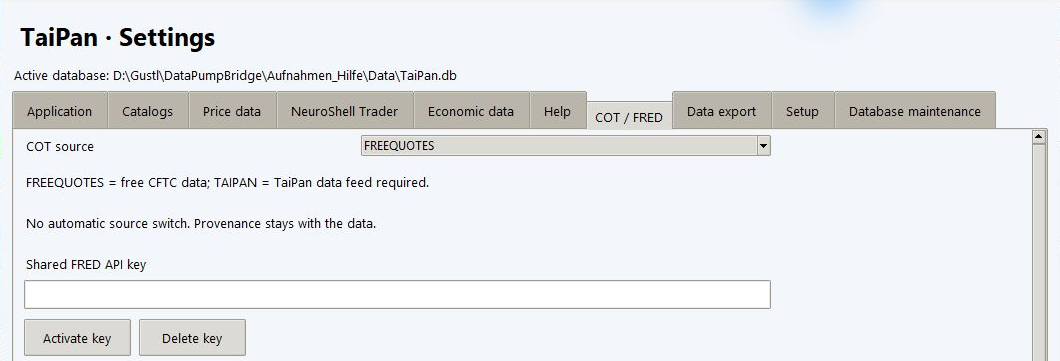 Open full-size screenshot in a new tab
Open Settings and select the COT / FRED tab. Enter your personal key in Shared FRED API key, then click Activate key.
Once set up, the key applies to all three programs: FreeQuotes, TaiPan and Interactive Brokers, for the same Windows user. You therefore only need to enter and activate it once.
Important: Obtain and activate your key before your first FRED download.
Step 2
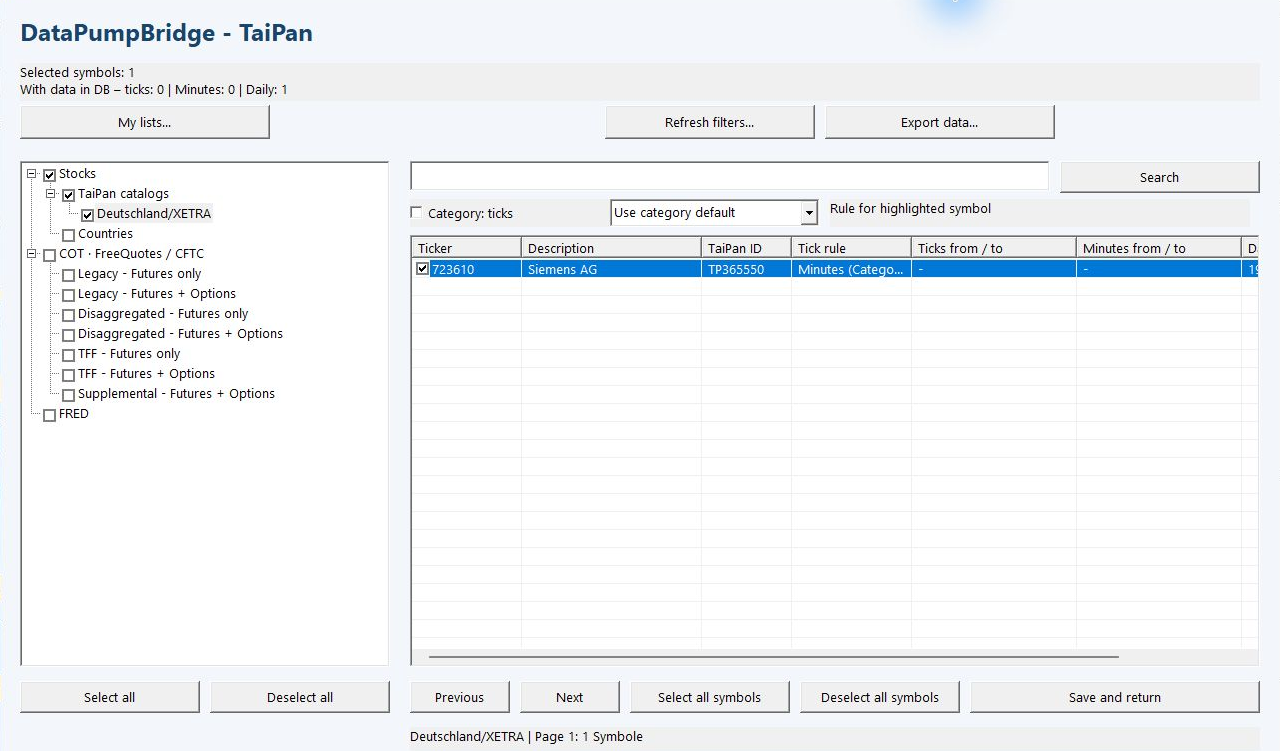
The supplied SQLite database already contains catalogs and symbol selection lists for several markets. Choose the instruments you want to use.
A catalog lists available instruments with their symbols and names. It is already populated.
Your symbol selection list determines which instruments’ market data will be downloaded.
Market data is stored in the SQLite database only after you download it, separately from the catalog entries.
Example: TaiPan
Choose a catalog on the left, then select symbols on the right.
Next, click Start download in the main application window, as described in Step 3.
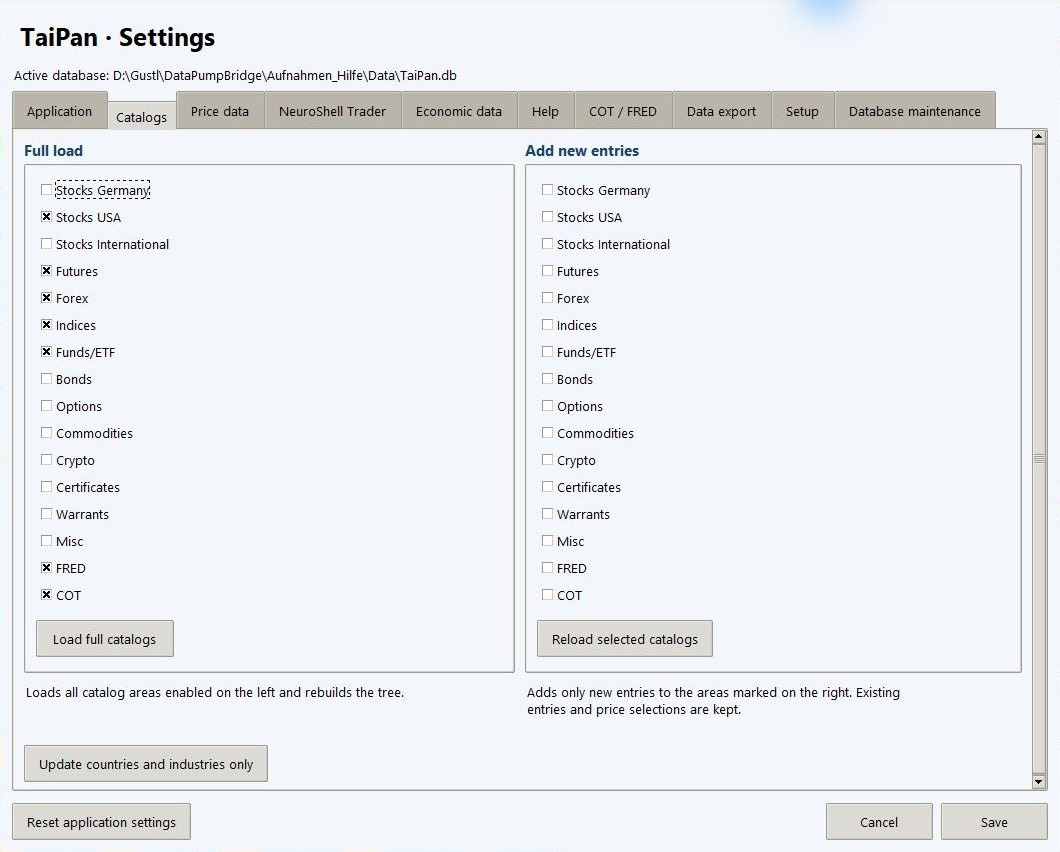
Optional
Reloading is only necessary if the catalog you want is not yet in the tree view.
Step 3
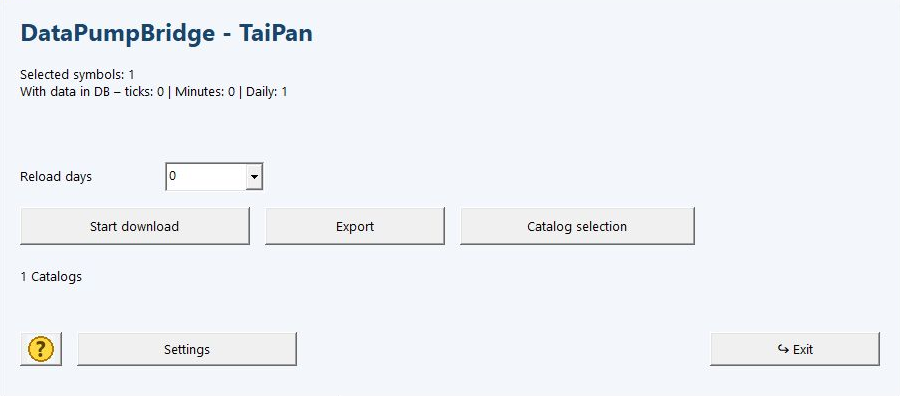
In the main window, click Start download. The selected market data is downloaded and stored in the database.
The first historical download can take longer. Subsequent incremental updates are generally faster.
Historical end-of-day (EOD) market data. Supported FRED economic datasets and CFTC Commitments of Traders (COT) reports use separate workflows.
Second-based snapshots in the DataPumpBridge integration. A complete tick-by-tick event history is not downloaded.
Genuine tick data where supported by your subscribed feed, plus historical intraday and EOD datasets where available from the provider.
Once the data is stored in the database, you can use it in NeuroShell Trader. This section applies to DataPumpBridge for NeuroShell Trader, not the standalone Data Downloader.
Start NeuroShell Trader.
Open the menu Tools → Data Servers.
Select the installed MarketLink data source that matches your DataPumpBridge installation:
Select the data source you want.
Select the available catalog you want.
Open the Setup tab, select the appropriate time zone and save the setting.
Open a chart using the selected data source.